iPhone Lock Screen Lyrics Widget Setup: Complete Guide
Learn how to add lyrics widgets to your iPhone Lock Screen with iOS 16+. Step-by-step setup for seeing synced lyrics without unlocking your phone.
Adding lyrics to your iPhone Lock Screen requires iOS 16 or later and a compatible lyrics app that supports Lock Screen widgets. Long-press your Lock Screen, tap Customize, add a widget to your chosen location, and select your lyrics app. The widget displays real-time synced lyrics from Apple Music or Spotify without requiring you to unlock your phone.
The iPhone Lock Screen got a major overhaul with iOS 16, transforming from a simple clock display into a customizable information hub. For music lovers, this means you can now see lyrics directly on your Lock Screen — no more unlocking your phone mid-song to check the next line. This guide walks you through every step of setting up Lock Screen lyrics widgets, troubleshooting common issues, and maximizing your singing-along experience.
Experience this with real-time synced lyrics
Lyrical shows every word as it plays, in Korean, romanized, and in sync with the music.
What You Need Before Starting
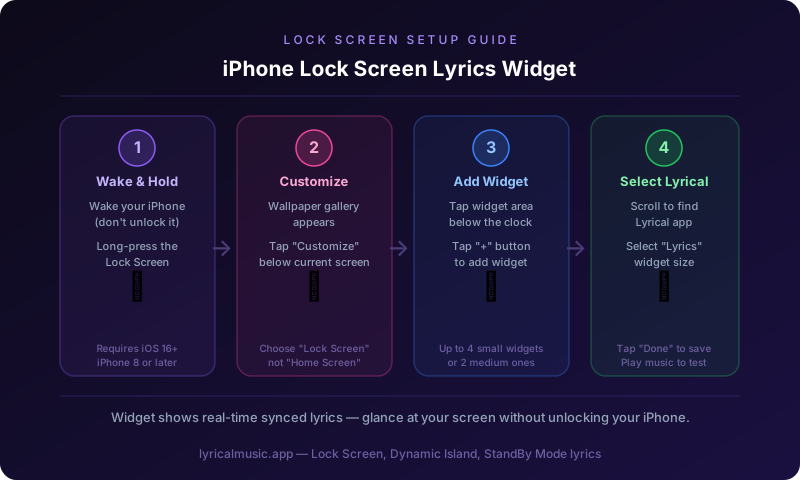
Not every iPhone or app supports Lock Screen lyrics. Verify your setup meets these requirements.
iOS Version Requirements
Lock Screen widgets require iOS 16 or later. Apple introduced this feature in September 2022, so any iPhone running current software qualifies.
To check your iOS version:
1. Open Settings
2. Tap General
3. Tap About
4. Look for "Software Version"
If you're running iOS 15 or earlier, update your iPhone before proceeding. Go to Settings > General > Software Update to download the latest version.
Compatible iPhone Models
Lock Screen widgets work on all iPhones that support iOS 16:
- iPhone 8 and 8 Plus
- iPhone X and newer
- iPhone SE (2nd generation and later)
Older models (iPhone 7 and earlier) cannot upgrade to iOS 16 and won't support this feature.
Required Apps
Your music streaming app must support Lock Screen widgets. Most major apps do:
- Apple Music (built-in, no additional setup)
- Spotify (supports Lock Screen widgets)
- Lyrical (dedicated lyrics app with widget support)
Standard music apps display basic now-playing information, but dedicated lyrics apps provide larger, more readable lyric displays designed specifically for quick glances.
Step-by-Step Lock Screen Widget Setup
Follow these instructions to add a lyrics widget to your Lock Screen.
Step 1: Access Lock Screen Customization
Method 1: Long-press the Lock Screen
1. Wake your iPhone (don't unlock it)
2. Long-press anywhere on the screen
3. The wallpaper gallery appears with your current Lock Screen highlighted
4. Tap "Customize" below your current Lock Screen
Method 2: Through Settings
1. Open Settings
2. Tap "Wallpaper"
3. Tap "Customize" under the Lock Screen preview
Both methods lead to the same customization interface.
Step 2: Choose Widget Location
The Lock Screen has three widget areas:
Top widget (above clock): Small horizontal space. Shows minimal information like current temperature or next calendar event. Not ideal for lyrics.
Clock area: The time display itself. Some apps can replace the default clock with custom displays, but this is rare for lyrics apps.
Bottom widget area (below clock): The primary widget space. This rectangular area accommodates larger widgets perfect for displaying multiple lines of lyrics. This is where you'll add your lyrics widget.
Tap the bottom widget area to open the widget selector.
Step 3: Add Your Lyrics Widget
After tapping the widget area, you'll see available widget categories:
1. Scroll through the horizontal list of apps
2. Find your lyrics app (Lyrical, Apple Music, etc.)
3. Tap the app icon to see available widget sizes
4. Select the lyrics widget option
5. Tap or drag it into the widget area
Most lyrics apps offer multiple widget sizes:
- Small: Shows current line only
- Medium: Shows 2-3 lines with context
- Large: Shows 4-5 lines (if space allows)
Choose based on your reading preferences and how much Lock Screen space you want to dedicate to lyrics.
Step 4: Arrange and Customize
With the widget added, you can:
- Drag it to reposition within the widget area
- Tap it to access size options (if multiple sizes exist)
- Add additional widgets alongside it (space permitting)
Consider what other information you want visible. Many users pair a lyrics widget with:
- Battery percentage
- Upcoming calendar events
- Weather information
Step 5: Save Your Configuration
Once satisfied with your layout:
1. Tap "Done" in the top-right corner
2. Choose whether to apply changes to the Lock Screen only, or also to the paired Home Screen
3. Tap the Lock Screen again to exit customization mode
Your lyrics widget is now active and will display whenever music plays.
Using Your Lock Screen Lyrics Widget
Setup is just the beginning. Here's how to get the most from your new widget.
How Lyrics Appear
When you play music through a supported app:
1. Wake your iPhone (raise to wake or tap screen)
2. The Lock Screen appears with your widget visible
3. Lyrics display in real-time as the song progresses
4. The current line is typically highlighted or larger
You don't need to unlock your phone or open any app. The information is available at a glance.
Interacting With the Widget
Most Lock Screen lyrics widgets support basic interaction:
Tap the widget: Opens the full lyrics app for detailed viewing
Swipe on the widget: Some apps let you scroll through upcoming lyrics
Long-press the widget: May reveal additional options or larger preview
These interactions require Face ID, Touch ID, or passcode authentication for security.
Widget Behavior When Paused
When music stops:
- Some widgets display the last shown lyrics
- Others show a "Tap to play" message
- Some minimize to show only the song title
Behavior varies by app. Check your specific app's settings for customization options.
Advanced Customization Options
Take your Lock Screen lyrics beyond basic setup with these advanced options.
Multiple Widget Configurations
iOS lets you create multiple Lock Screen configurations and switch between them:
1. Long-press the Lock Screen
2. Tap the plus (+) button to create a new Lock Screen
3. Set up different widgets for different contexts
Useful configurations:
- Music focus: Large lyrics widget, minimal other information
- Work focus: Small lyrics widget with calendar and reminders
- Travel focus: Lyrics widget with weather and maps
Switch between configurations by swiping left/right on the Lock Screen gallery.
Focus Mode Integration
iOS Focus modes can automatically change your Lock Screen:
1. Go to Settings > Focus
2. Select or create a Focus mode (Driving, Fitness, etc.)
3. Under "Options," tap "Lock Screen"
4. Choose which Lock Screen configuration appears during that Focus
Example setup:
- Driving Focus activates → Lock Screen switches to large lyrics widget for CarPlay singing
- Work Focus activates → Lock Screen switches to minimal widget with calendar priority
Widget Stacking
iOS supports widget stacking — multiple widgets in the same space that rotate:
1. Add one widget to your Lock Screen
2. Drag a second widget onto the first
3. A stack is created
4. Swipe up/down on the stack to switch between widgets
This lets you have lyrics, weather, and calendar all sharing the same widget area, cycling based on relevance or time.
Troubleshooting Common Issues
Lock Screen widgets sometimes misbehave. Here's how to fix the most common problems.
Widget Not Appearing
Problem: You added the widget but don't see lyrics when music plays.
Solutions:
1. Verify the music app supports Lock Screen widgets
2. Check that the app has permission to display on Lock Screen (Settings > [App Name] > Notifications)
3. Restart your iPhone (fixes many widget glitches)
4. Remove and re-add the widget
5. Update the app to the latest version
Lyrics Not Syncing
Problem: Widget shows lyrics but they don't match the music timing.
Solutions:
1. Check your internet connection (synced lyrics require data)
2. Force-close and reopen the music app
3. Try a different song (some tracks lack synced lyrics)
4. Verify the app has permission to run in background (Settings > General > Background App Refresh)
Widget Too Small to Read
Problem: Lyrics appear but are difficult to read at a glance.
Solutions:
1. Switch to a larger widget size (tap widget > select larger option)
2. Reduce other widgets to give lyrics more space
3. Enable Bold Text (Settings > Display & Brightness > Bold Text)
4. Increase text size (Settings > Display & Brightness > Text Size)
Battery Drain Concerns
Problem: You're worried Lock Screen widgets hurt battery life.
Reality: Lock Screen widgets have minimal battery impact. They only update when:
- You wake your phone
- The song progresses (every few seconds)
- Significant song changes occur
The display itself uses more battery than the widget functionality. If battery life is a concern, reduce how often you wake your phone to check lyrics rather than removing the widget.
Widget Disappears Randomly
Problem: The widget sometimes vanishes and reappears.
Causes and solutions:
- Low Power Mode: iOS disables some widgets to save battery. Charge your phone or disable Low Power Mode.
- App crash: The lyrics app may have crashed. Reopen it.
- iOS glitch: Restart your iPhone to refresh the widget system.
Comparing Lock Screen Lyrics Options
Different apps offer different Lock Screen experiences. Here's how they compare.
Apple Music
Pros:
- Built into iOS, no additional apps needed
- Large lyrics database
- Beautiful full-screen lyrics when tapped
Cons:
- Requires Apple Music subscription
- Limited widget customization
- No romanization for non-English lyrics
Best for: Apple Music subscribers who want simple, integrated lyrics
Spotify
Pros:
- Massive user base and music library
- Real-time synced lyrics for many tracks
- Cross-platform consistency
Cons:
- Lock Screen widget is basic
- Lyrics availability varies by region
- No romanization features
Best for: Spotify users who want lyrics without switching apps
Lyrical
Pros:
- Dedicated lyrics app with Lock Screen optimization
- Romanization for K-pop, anime, and J-pop
- Multiple widget sizes and styles
- Works with both Apple Music and Spotify
Cons:
- Requires separate app download
- Premium features require subscription
Best for: Users who want romanized lyrics and advanced widget customization
Tips for the Best Lock Screen Lyrics Experience
Maximize your setup with these pro tips.
Optimize for Glanceability
Lock Screen lyrics should be readable in under one second. If you need to study the screen, the widget is too small or crowded.
- Use larger widget sizes
- Minimize other widgets competing for attention
- Choose high-contrast wallpapers that make text pop
Consider Always-On Display (iPhone 14 Pro and later)
If you have an iPhone 14 Pro, 14 Pro Max, 15 Pro, or 15 Pro Max, your Lock Screen can stay visible at all times:
1. Go to Settings > Display & Brightness
2. Tap Always On Display
3. Enable the feature
With Always-On Display, lyrics remain visible without touching your phone — perfect for singing along while your hands are busy.
Pair with StandBy Mode
iOS 17 introduced StandBy Mode, which activates when your iPhone charges horizontally:
1. Place your iPhone on a charger in landscape orientation
2. StandBy Mode activates automatically
3. Swipe to find the music/lyrics view
4. Lyrics display large and readable from across the room
This transforms your charging iPhone into a dedicated lyrics display — ideal for desk setups or bedside tables.
Use with CarPlay
Lock Screen lyrics complement CarPlay beautifully:
1. Connect to CarPlay
2. Your iPhone Lock Screen still shows the widget
3. Passengers can follow lyrics while the driver focuses on the road
4. Some cars display lyrics directly on the dashboard screen
Privacy and Security Considerations
Lock Screen widgets display information without requiring authentication. Consider what you're comfortable showing.
What's Visible to Others
Anyone who can see your Lock Screen sees:
- Current song title and artist
- Current lyrics line
- Your widget layout
They cannot:
- Open apps without authentication
- See your full lyrics history
- Access other phone functions
Managing Sensitive Content
If you listen to explicit content or personal audio:
- Consider whether you want lyrics visible on your Lock Screen
- Use Focus modes to disable widgets in sensitive environments
- Remember that lyrics widgets show what's currently playing
Notification Privacy
Lyrics widgets work alongside notifications. If you're concerned about privacy:
- Go to Settings > Notifications
- Configure which apps show previews on Lock Screen
- Consider disabling sensitive app notifications from appearing alongside lyrics
Frequently Asked Questions
Can I add lyrics widgets to my Home Screen too?
Yes. Home Screen widgets offer even more size options and interactivity. Long-press your Home Screen, tap the plus (+) button, and select your lyrics app. Home Screen widgets can be larger and more detailed than Lock Screen versions.
Do Lock Screen lyrics work with Bluetooth headphones?
Absolutely. The widget displays based on what's playing on your iPhone, regardless of audio output. Whether you're using AirPods, car Bluetooth, or speakers, lyrics appear the same way.
Can I see lyrics from multiple apps?
Most lyrics apps only display lyrics for their own playback. However, apps like Lyrical can pull lyrics from both Apple Music and Spotify, giving you a unified experience regardless of which service you use.
Why don't some songs show lyrics?
Lyrics availability depends on licensing agreements and whether the song has been transcribed. Major label releases usually have lyrics, while obscure tracks, live versions, and some regional music may not. This is a limitation of the lyrics database, not your widget setup.
Will Lock Screen lyrics work on iPad?
iPadOS supports Lock Screen widgets starting with iPadOS 17. The setup process is identical to iPhone. However, iPads don't have a traditional "Lock Screen" in the same way — widgets appear on the Today View and Home Screen instead.
Can I customize the font or colors?
Lock Screen widget appearance is controlled by the app developer and iOS system settings. You can't directly change fonts or colors, but you can:
- Adjust system text size and boldness
- Choose wallpapers that complement or contrast with widget text
- Select different widget sizes which may use different layouts
The Future of Lock Screen Lyrics
Apple continues expanding Lock Screen capabilities with each iOS release. Interactive widgets, introduced in iOS 17, let you perform actions without opening apps. Future updates may allow:
- Scrolling through lyrics directly on the Lock Screen
- Tapping lyrics to jump to specific song sections
- Collaborative lyrics where multiple users see the same synced display
The trend is clear: your Lock Screen is becoming an increasingly powerful information and interaction surface. Setting up lyrics widgets now prepares you for these future enhancements.
Ready to set up Lock Screen lyrics? Download Lyrical for optimized Lock Screen widgets with romanization, karaoke mode, and support for both Apple Music and Spotify.
*Related guides: Dynamic Island Lyrics Guide • StandBy Mode Lyrics Setup • CarPlay Lyrics App*