How to Organize Liked Songs Into Playlists You Will Actually Use
Treat Liked Songs as an inbox, sort a manageable batch at a time, and build playlists around the ways you actually listen.
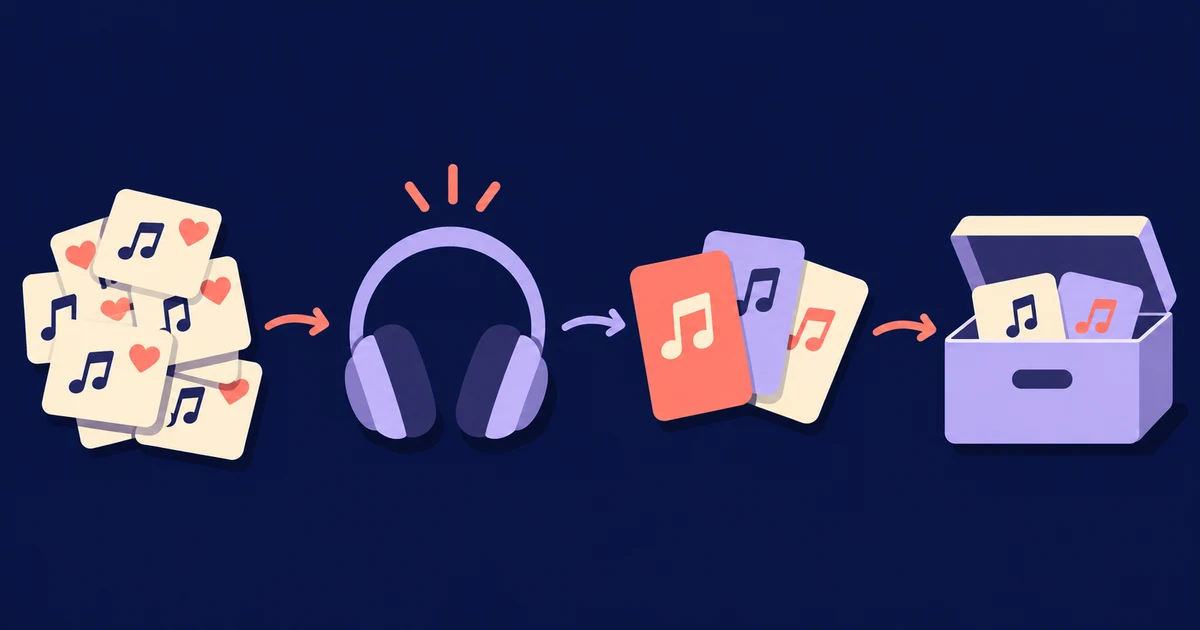
Use Liked Songs as an inbox, not as your finished music collection. Work through a manageable batch, listen with a real situation in mind, and move each keeper into a small set of useful playlists. Then remove filed tracks from Liked Songs or add them to a separate Reviewed playlist. That last step matters because it stops the same songs from returning in every cleanup session.
Build playlists around listening situations, not perfect genres
The usual mistake is choosing categories that make every saved song a debate. Alternative Mix may be accurate, but it does not tell you when you would play it. A playlist for commuting, focused work, late-night listening, or a quick lift gives each track a more obvious job.
- Everyday listening: songs you are usually happy to hear without choosing a particular mood.
- Energy: tracks you would pick when you want more momentum.
- Focus or low-key listening: music that can sit alongside whatever needs your attention.
- Archive: songs you may want again, even though they do not fit a current listening situation.
These are examples, not a required filing system. Keep only the playlist jobs that suit your habits. A song can also belong to more than one playlist if you genuinely choose it in different situations.
Use an inbox, audition, keep, and archive workflow
Do not start by rebuilding your whole library. Choose a short queue with an endpoint you can reach in one sitting. Finish it before pulling in another batch.
- Use Liked Songs as the inbox where undecided tracks wait.
- Audition each song only until you know when you would choose it.
- Keep a track by adding it to at least one playlist with a clear purpose.
- Send uncertain tracks to one archive so they do not hold up the batch.
- Complete the decision by removing the filed track from Liked Songs or adding it to Reviewed.
Removing filed tracks from Liked Songs works well if you want to watch the inbox shrink. First, make sure each one is safely stored in a playlist or the archive. If Liked Songs is your permanent collection, leave processed tracks there and add them to Reviewed as well. Future cleanup sessions can then skip anything already marked.
Make each decision quickly
Ask one practical question: when would I choose this song on purpose? If the answer comes quickly, the destination is usually clear. If no situation comes to mind, put the track in the archive and move on.
You do not need to hear every track from start to finish unless the decision depends on it. You are placing a song, not writing a full review. When your choices start to feel vague, stop. Resume later, after the current batch has been filed and marked complete.
Organize playlists in Spotify
Spotify Support documents sorting and filtering for Your Library and individual playlists. The choices available depend on what you are sorting, so follow the controls in your current app rather than expecting every library screen to work the same way.
Once your playlists have clear roles, folders can separate the ones you use from experiments and archived lists. Spotify currently documents creating playlist folders on desktop, in the web player, and on mobile, with those folders appearing across devices. For a small system, an Active folder and an Archive folder may be enough.
Organize playlists in Apple Music on iPhone
Apple Music has a different folder workflow, so the Spotify steps do not apply. On iPhone, Apple Support says to open Music, go to Library and then Playlists, touch and hold a playlist or folder, and choose Move to Folder. You can also select New Folder while moving a playlist.
Apple says changes to playlist folders update across your devices when Sync Library is turned on. Use folders for broad divisions such as active listening and archived ideas. The individual playlist names can stay tied to real listening situations.
Keep discovery separate from cleanup
Adding recommendations while clearing a backlog makes the inbox grow during the cleanup. Stick to songs you have already saved until one playlist has taken shape. Then leave organization mode and start discovering music again.
When that playlist needs something new, use the guide to find similar songs on Apple Music and Spotify. If the missing track is only a melody in your head, try the steps for finding a song when you only remember the tune.
Maintain the system without rebuilding it
- File a new keeper straight away when you already know where it belongs.
- End each review batch by removing filed tracks from the inbox or marking them as reviewed.
- Return to the inbox when it starts to feel noisy instead of waiting for another full library overhaul.
- Merge playlists when you can no longer explain the difference between them.
- Retire a playlist when you no longer choose it for the situation named in its title.
Once a song has earned its place, you can follow it with synced lyrics in Lyrical. That is an optional listening step, not a way to organize the playlists themselves.
Start with one playlist you will use, one archive, and one rule for marking a decision complete. Sort a short batch today, then listen to the resulting playlist before creating another category.
Sources
- Spotify: Sort and filter
- Spotify: Playlist folders
- Apple Support: Organize playlist folders